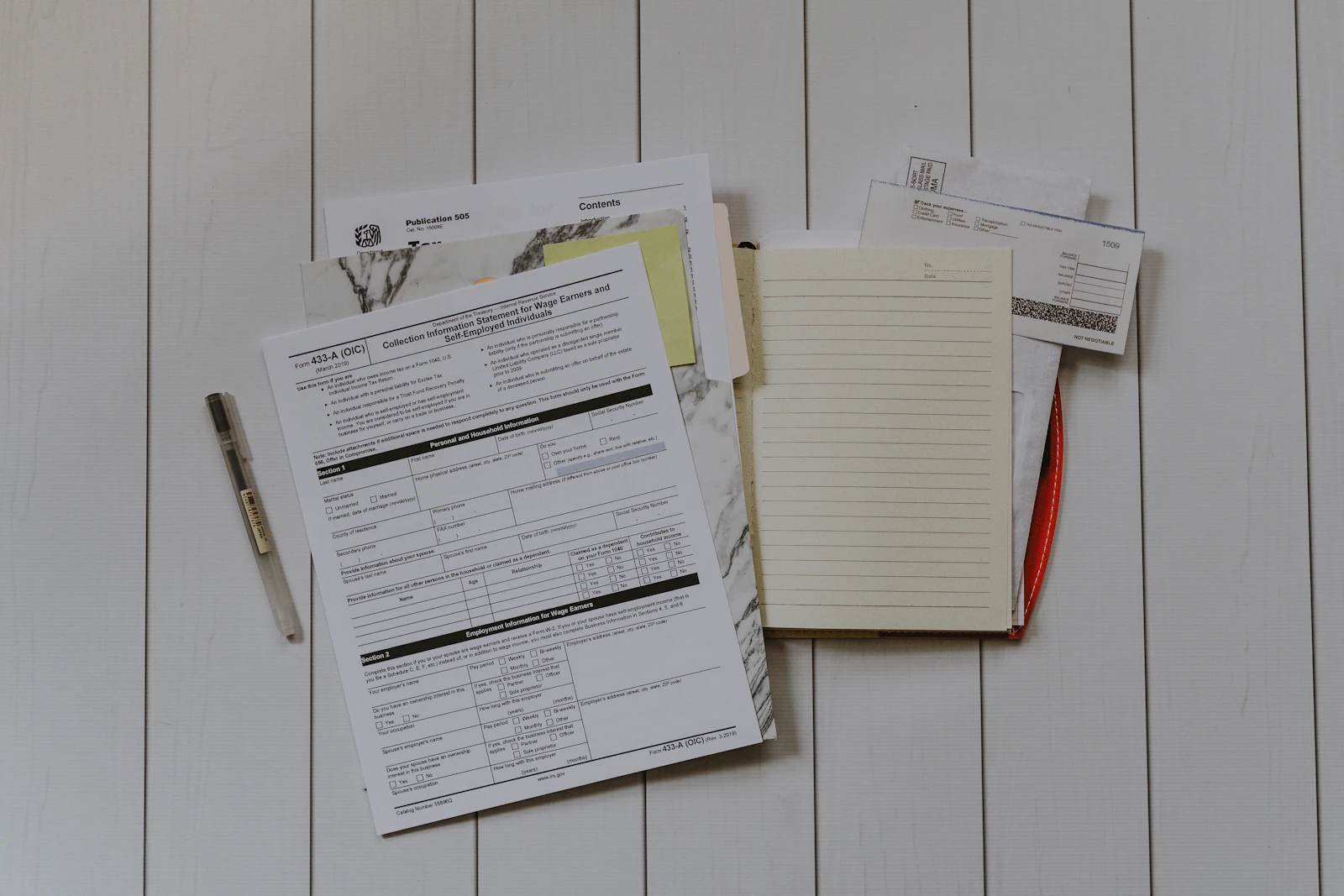
Somewhere in your inbox there is a folder of PDFs that someone is going to retype into a spreadsheet. Invoices from suppliers. Bank statements for the month. Shipping documents with a dozen lines of goods on each one.
AI is good at this job. It can read a PDF, work out which part is the supplier, which part is the date and which part is the table, and hand it back as rows and columns. The trick is to ask in a way that gives you the same columns every time.
This guide covers two routes. The quick one takes five minutes and needs no code. The automatic one takes about half an hour to set up, then runs on a whole folder at once. There is also a section on Arabic documents, because they need a few extra instructions to come out clean.
Route 1: the quick manual version
If you have a handful of files, use a chatbot. ChatGPT, Claude and Gemini all accept PDF uploads, and all can produce a table you can copy.
Upload one PDF and use a prompt that defines the columns for that document type. The columns are the important part. If you leave them out, the AI invents its own, and every file comes back different.
For an invoice:
Read the attached invoice and return one table with one row per line item.
Columns: invoice_number, invoice_date (YYYY-MM-DD), supplier, currency,
description, quantity, unit_price, line_amount.
Repeat the invoice-level fields on every row. Add a final row for tax
and for shipping if present, with the amount in line_amount.
If a value is missing or unreadable, write UNREADABLE. Do not guess.
Output only the table.
For a bank statement:
Read the attached bank statement and return one table with one row per
transaction. Columns: date (YYYY-MM-DD), description, money_out,
money_in, balance_after.
Before the table, list on separate lines: account holder, bank, currency,
statement period, opening balance, closing balance.
Use plain numbers with no currency symbols or thousands separators.
If a value is unreadable, write UNREADABLE. Do not guess.
For a shipping document:
Read the attached shipping document (bill of lading, packing list or
waybill) and return one row per goods line. Columns: reference_number,
carrier, ship_date (YYYY-MM-DD), origin, destination, description,
quantity, unit, gross_weight_kg.
If a value is missing, leave it empty. Do not guess.
Output only the table.
Most chatbots show the table on screen. You can ask for "CSV in a code block" and save it as a .csv file, then open it in Excel. Some, such as ChatGPT, can also create an .xlsx file you download directly, depending on your plan and settings. Pasting the table straight into a blank sheet usually works too.
Two habits help. First, tell it what to do with missing data, as above. Second, check the first file by eye before you trust the pattern for the next fifty.
This is fine for a few files a week. At a few hundred, the uploading gets tedious, which is what the next route fixes.
Route 2: a folder that turns into a spreadsheet
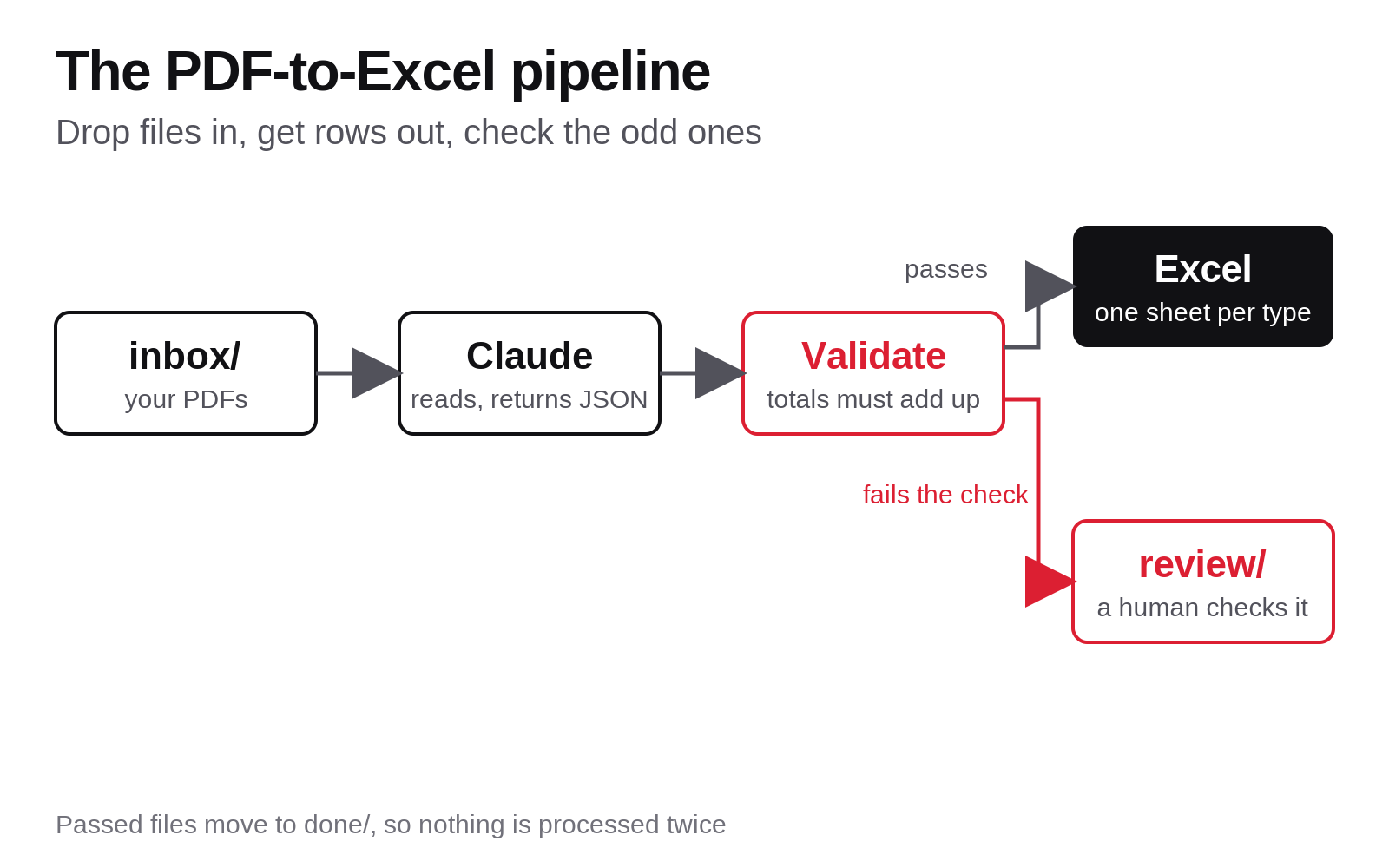
The idea is simple. You drop PDFs into an inbox/ folder and run one script. For each file, the script asks Claude to read it and return strict JSON, checks the result, writes rows into an Excel workbook, and files the PDF away.
The script talks to the Claude API through the official Python package, so you need an API key from the Claude Console. The API is billed separately from a chat subscription. If you haven't used it before, the setup steps in our first AI agent guide cover the account, key and virtual environment in more detail.
Setup
On Windows (PowerShell):
mkdir pdf-to-excel
cd pdf-to-excel
python -m venv venv
venv\Scripts\Activate.ps1
pip install anthropic openpyxl
$env:ANTHROPIC_API_KEY = "paste-your-key-here"
mkdir inbox
On macOS or Linux:
mkdir pdf-to-excel && cd pdf-to-excel
python3 -m venv venv
source venv/bin/activate
pip install anthropic openpyxl
export ANTHROPIC_API_KEY="paste-your-key-here"
mkdir inbox
The key lives in an environment variable for that terminal window only. The SDK finds it automatically, so it never appears in your code. Never paste a key into a script you might share.
Put a few PDFs in inbox/. Use copies, not your only originals, because the script moves files.
The script
Save this as pdf_to_excel.py:
import base64, json, shutil
from pathlib import Path
import anthropic
from openpyxl import Workbook, load_workbook

MODEL = "claude-sonnet-5-5"
INBOX, DONE, REVIEW = Path("inbox"), Path("done"), Path("review")
OUT = Path("extracted.xlsx")
# Columns per document type: (header fields, per-row fields)
TYPES = {
    "invoice": (["invoice_number", "invoice_date", "supplier",
                 "currency", "invoice_total"],
                ["description", "quantity", "amount"]),
    "bank_statement": (["bank", "currency", "opening_balance",
                        "closing_balance"],
                       ["date", "description", "amount"]),
    "shipping": (["reference", "carrier", "ship_date", "origin",
                  "destination"],
                 ["description", "quantity", "weight_kg"]),
}

PROMPT = (
    "Read this document. It is an invoice, a bank_statement or a "
    "shipping document. Reply with JSON only, shaped "
    'like {"doc_type": "...", "header": {...}, "rows": [{...}]}. '
    "Fields per doc_type, as [header fields, row fields]: "
    + json.dumps(TYPES)
    + " Use null for anything you cannot read. Never guess. "
    "Amounts are plain numbers (negative for money going out). "
    "Dates are YYYY-MM-DD. For invoices, put tax and shipping in as "
    "their own rows so the row amounts add up to invoice_total."
)

client = anthropic.Anthropic()  # reads ANTHROPIC_API_KEY

def extract(pdf):
    # Send one PDF to Claude and return the parsed JSON
    data = base64.standard_b64encode(pdf.read_bytes()).decode()
    msg = client.messages.create(
        model=MODEL,
        max_tokens=8000,
        messages=[{"role": "user", "content": [
            {"type": "document", "source": {"type": "base64",
                "media_type": "application/pdf", "data": data}},
            {"type": "text", "text": PROMPT},
        ]}],
    )
    text = msg.content[0].text.strip()
    if text.startswith("```"):  # strip a code fence if present
        text = text.strip("`").removeprefix("json").strip()
    return json.loads(text)

def validate(d):
    # Raise an error if data is incomplete or the sums are off
    kind = d["doc_type"]
    if kind not in TYPES:
        raise ValueError(f"unknown type: {kind}")
    head_f, row_f = TYPES[kind]
    h, rows = d["header"], d["rows"]
    if not rows or any(k not in h for k in head_f) or any(
            k not in r for r in rows for k in row_f):
        raise ValueError("no rows, or missing fields")
    diff = 0
    if kind != "shipping":
        total = sum(float(r["amount"]) for r in rows)
        if kind == "invoice":  # line items must equal the total
            diff = total - float(h["invoice_total"])
        else:  # opening balance + transactions = closing balance
            diff = (float(h["opening_balance"]) + total
                    - float(h["closing_balance"]))
    if abs(diff) > 0.01:
        raise ValueError(f"totals do not add up (off by {diff:.2f})")

def append(d, filename):
    # Add rows to the workbook, one sheet per document type
    wb = load_workbook(OUT) if OUT.exists() else Workbook()
    if "Sheet" in wb.sheetnames:
        del wb["Sheet"]
    kind = d["doc_type"]
    head_f, row_f = TYPES[kind]
    if kind not in wb.sheetnames:
        wb.create_sheet(kind).append(["file"] + head_f + row_f)
    for row in d["rows"]:
        wb[kind].append([filename] + [d["header"][k] for k in head_f]
                        + [row[k] for k in row_f])
    wb.save(OUT)

if __name__ == "__main__":
    [p.mkdir(exist_ok=True) for p in (INBOX, DONE, REVIEW)]
    for pdf in sorted(INBOX.glob("*.pdf")):
        try:
            result = extract(pdf)
            validate(result)
            append(result, pdf.name)
            target = DONE
        except Exception as err:  # any failure goes to a human
            print(f"REVIEW {pdf.name}: {err}")
            target = REVIEW
        shutil.move(str(pdf), target / pdf.name)
Run it with python pdf_to_excel.py. Open extracted.xlsx when it finishes, and you'll find one sheet per document type with a file column telling you which PDF each row came from.
How it works
- The PDF goes in as a document block. The file is base64-encoded and sent with the media type
application/pdf. Claude reads the pages as a whole, including the layout, not just a text dump. - The prompt asks for JSON only. We pass the column lists in the prompt itself, so the shape is defined in one place,
TYPES, and used for both the request and the Excel header. validateis your safety net. It rejects unknown types, missing fields and totals that don't add up. A model can return perfectly formatted nonsense, so never skip this step.- Anything that fails goes to
review/. That includes bad JSON, network errors and a total that is off by even a cent. The PDF waits there for a person. - The workbook is saved after every file. If something crashes halfway through a big folder, the finished files are already in the spreadsheet and already moved to
done/.
Some limits. The script handles one type per PDF, so a combined document with several invoices needs splitting first. If two PDFs share a filename, the move will overwrite one of them, so keep names unique. Very long statements may need a higher max_tokens. And it runs when you run it. To make it automatic, schedule it with Windows Task Scheduler or cron, or loop it with a short time.sleep.
What it costs
Each page costs a small amount, since you pay for the tokens the model reads and writes, and a PDF page counts as both text and an image. A typical invoice is cheap, and a long statement costs more. Exact prices change, so check the Anthropic pricing page for the model you use. Run ten files first and look at the usage in your Console before you point the script at ten thousand.
Arabic documents
Claude and similar models can read Arabic text inside PDFs, including right-to-left tables. Invoices from the Gulf and Egypt, bank statements and customs paperwork can all go through the same pipeline. A few extra instructions make the difference between usable and annoying.
Add these rules to the end of PROMPT:
ARABIC_RULES = (
    " The document may be in Arabic or bilingual. Keep names and "
    "addresses exactly as written in Arabic in the field itself, "
    "and put an English transliteration or translation in a "
    "matching field ending in _english. Convert Eastern Arabic "
    "digits (٠١٢٣٤٥٦٧٨٩) to Western digits (0123456789) in every "
    "number and date. Remove thousands separators and use a "
    "dot as the decimal mark. Tables read right to left, so "
    "match values to their column headers, not their position. "
    "If a date is Hijri, return both the Hijri date as written "
    "and the Gregorian date, in separate fields. Use ISO currency "
    "codes such as SAR, AED, EGP or KWD, not symbols or words."
)
PROMPT += ARABIC_RULES
Then add matching fields to TYPES. For invoices, for example:
"invoice": (
    ["invoice_number", "invoice_date", "invoice_date_hijri",
     "supplier", "supplier_english", "currency", "invoice_total"],
    ["description", "description_english", "quantity", "amount"]),
Here is why each rule is there:
- Original plus English. You keep the Arabic as the source of truth, which matters for names, tax registrations and anything you may need to show an auditor. The English column is for sorting, searching and colleagues who don't read Arabic. Treat transliterated names as a convenience, not a record.
- Digits. Many Arabic documents use Eastern Arabic numerals, and Excel won't sum them. Converting to Western digits in the prompt keeps your number columns numeric.
- Right-to-left tables. In a table laid out right to left, the first column is on the right. Telling the model to match values to headers stops it from reading across in the wrong order.
- Hijri and Gregorian dates. Some documents print both, and some only one. Keeping both in separate columns means you can see what the document said without losing a date you can filter on. If only a Hijri date is printed, check any converted Gregorian date, because a one-day difference is possible.
- Currency codes.
SAR,AEDandEGPare unambiguous. Symbols and words like "ريال" or "جنيه" are not, since several countries use the same word.
Finally, make the sheet suit its readers. In append, right after wb.create_sheet(kind), set the direction. Because create_sheet(...).append(...) is chained in the script above, split it into two lines:
if kind not in wb.sheetnames:
    ws = wb.create_sheet(kind)
    ws.sheet_view.rightToLeft = True  # columns run right to left
    ws.append(["file"] + head_f + row_f)
Excel will then open the sheet with column A on the right and Arabic text aligned the way an Arabic reader expects. If you need English sheets and Arabic sheets, keep a separate output file for each and only set that flag on the Arabic one.
Scanned and low-quality pages. Arabic OCR is harder than English OCR, especially with faint stamps, handwriting, small print, dots over letters that have blurred together, or a skewed photo of a page. The model may still read the page confidently and get a digit wrong. Don't assume a clear-looking result is a correct one. Spot-check every scanned file against the original at least at first, and rely on the totals check below.
Accuracy checks you should always run
AI extraction is fast, not infallible. A misread 8 that looks like a 6 gives you a clean table with a wrong number. Build checks that don't depend on trusting the model.
- Line items against the total. Add up the rows and compare with the invoice total, as the script does. If the model skipped a line, the totals disagree, and you find out.
- Opening plus transactions equals closing. For a bank statement, start from the opening balance, add all transactions, and compare with the closing balance. It is one of the best checks you have, because a single error anywhere breaks it.
- Flag, don't fix. When a check fails, send the file to
review/. Don't let the script quietly adjust numbers to make them fit. - Spot-check a sample. Even when totals match, pick a few files and compare the row values to the PDF. Errors that cancel each other out are rare but real.
- Use
null, not guesses. The prompt tells the model to leave unreadable values empty. A blank is something you can find. An invented number is not. - Keep the filename on every row. The
filecolumn means any odd row can be traced back to its source in seconds.
Privacy: think before you upload
Invoices are usually fine. Bank statements are not something to upload casually. They contain account numbers, balances, names and spending patterns.
Before you run this on real data:
- Check the provider's data policy. Look at how your chosen service handles API data and chat uploads, and whether your plan lets it use your content for training. The answers differ between consumer chat products, business plans and the API.
- Check your workplace rules. If you do this for an employer or clients, you may need approval, or there may be a policy that says which tools you can use.
- Redact what you don't need. If you only want transactions, black out or remove full account numbers and personal identifiers before sending. A blank in an account column costs you nothing.
- Don't upload other people's documents without permission. Customer statements, a client's invoices or an employee's paperwork aren't yours to hand to a third party on your own say-so.
- Handle the output carefully too. The spreadsheet and the
done/folder now hold the same sensitive data. Store them like the originals.
For more on matching tools to risk, our guide to choosing the right AI model is a useful companion.
A sensible way to start
- Pick one document type and try the manual prompt on three real files.
- Tweak the columns until the table is exactly what you'd build by hand.
- Copy those columns into
TYPESand run the script on a small folder of copies. - Compare the spreadsheet with the PDFs. Watch what lands in
review/and why. - Only then widen it to more files and more document types.
If the results are good, you've turned an afternoon of retyping into a few minutes of checking. And that's the right way round: the AI does the typing, and you do the judging.


