
A free tool went viral this autumn for making slow Android TVs feel new. It's called CleanYourTV. You paste one prompt into an AI coding agent, and it clears out the junk apps and gives your TV a clean, Apple TV-style home screen.
Here's how to do it, with pictures of what you'll see on the TV.
First, check your TV
Go to Settings > About on your TV. If it says Android TV or Google TV, you're good to go.
- Android TV or Google TV (Sony, TCL, Hisense, Philips, Xiaomi, Nvidia Shield): full clean-up and a new home screen. Follow the five steps below.
- Amazon Fire TV: clean-up only. Amazon won't let you replace the home screen.
- Samsung, LG, Roku or Vizio: no clean-up. Skip to other TVs.
What you need
- A laptop on the same Wi-Fi as the TV.
- An AI coding agent. Claude Code needs a paid Claude plan. Codex works with a ChatGPT account. The free Claude or ChatGPT chat apps won't do it, because they can't connect to your TV.
- 30 to 60 minutes, sitting near the TV.
To install an agent on a Mac or Linux laptop, open the Terminal app and paste one of these:
curl -fsSL https://claude.ai/install.sh | bash   # Claude Code
npm install -g @openai/codex                     # Codex
On Windows, use irm https://claude.ai/install.ps1 | iex in PowerShell for Claude Code.
Step 1: unlock Developer options
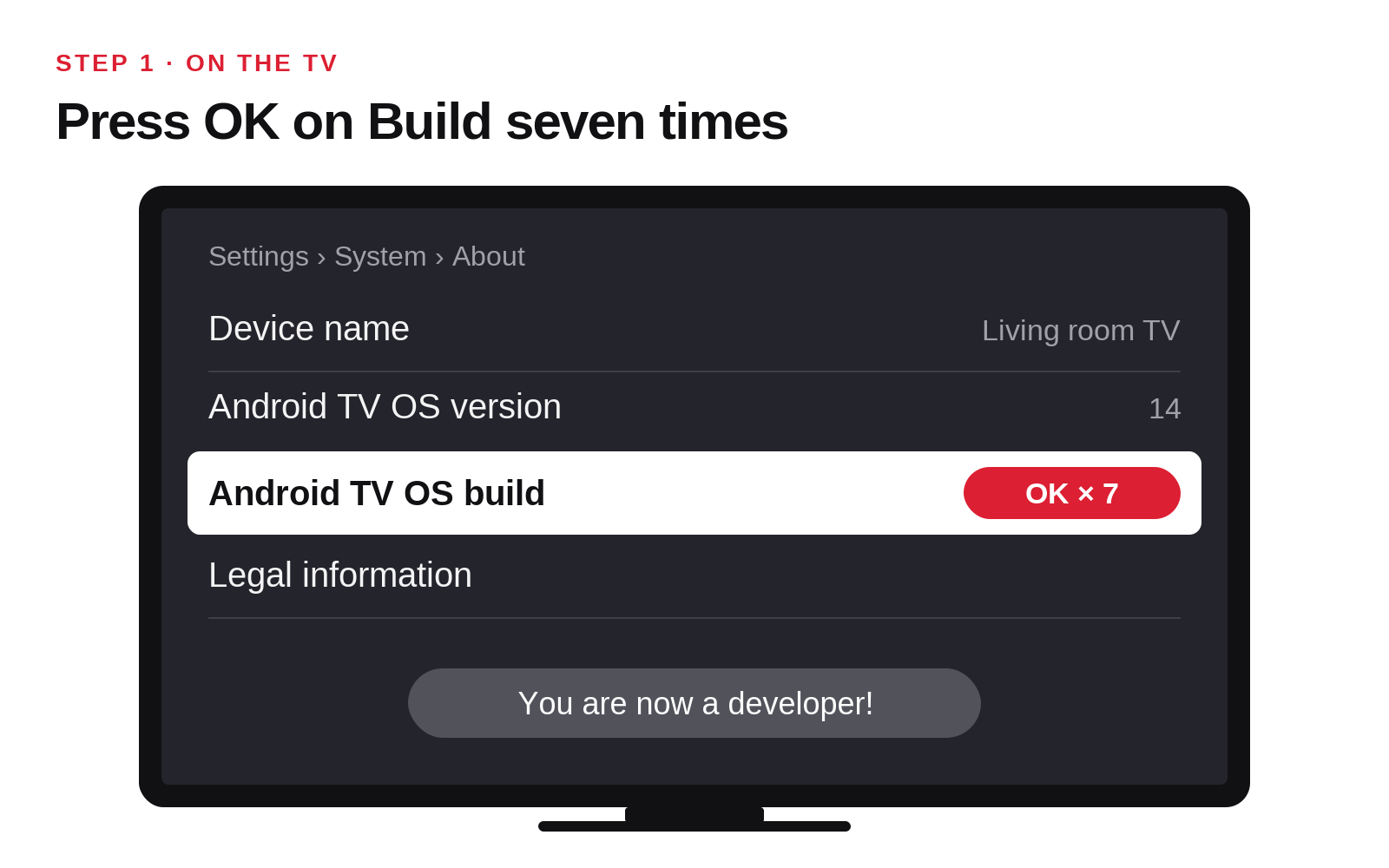
On the TV, go to Settings > System > About. Older TVs put it under Device Preferences > About.
Highlight Android TV OS build (or just Build) and press OK seven times. A message will say you're now a developer.
Step 2: switch on USB debugging
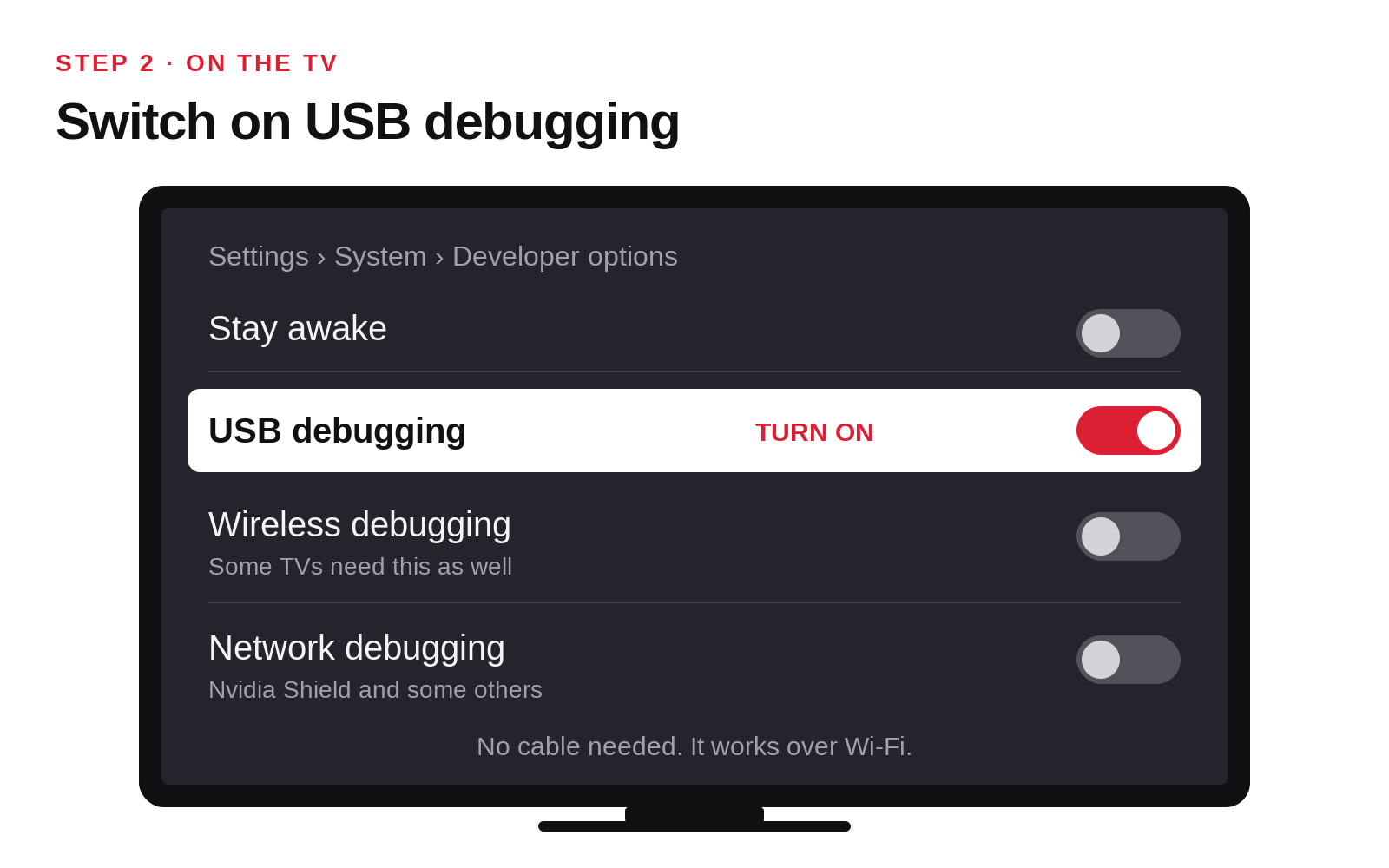
Go back to Settings > System. You'll see a new Developer options menu. Open it and turn on USB debugging.
Some TVs also need Wireless debugging or Network debugging switched on. Despite the name, you don't need a cable.
Step 3: download CleanYourTV and paste the prompt
On your laptop, open Terminal and run:
git clone https://github.com/Gathin23/cleanyourtv
cd cleanyourtv
claude
Type codex instead of claude if you're using Codex. No git? Download the ZIP from the GitHub page instead, unzip it, and open the agent in that folder.
Open the PROMPT.md file, copy everything in it, paste it into the agent and add your TV's model. That prompt has the safety rules built in.
The agent will ask before running each command. Keep it that way: don't use skip-permission modes. If you don't understand a command, ask "what does this do?"
Step 4: allow the connection on the TV
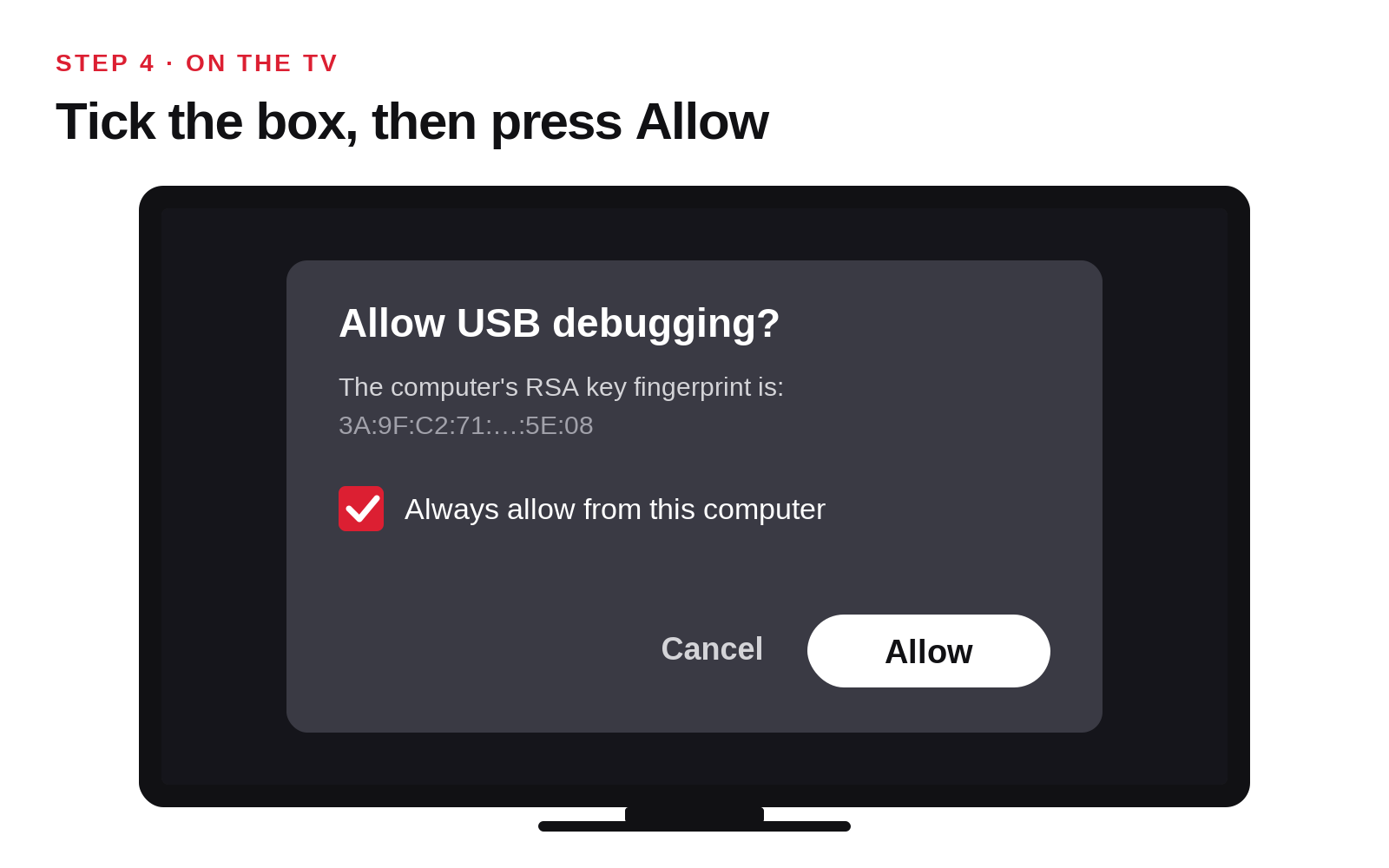
The agent finds your TV, and a pop-up appears on the screen. Tick Always allow from this computer, then press Allow.
Step 5: answer its questions and let it work
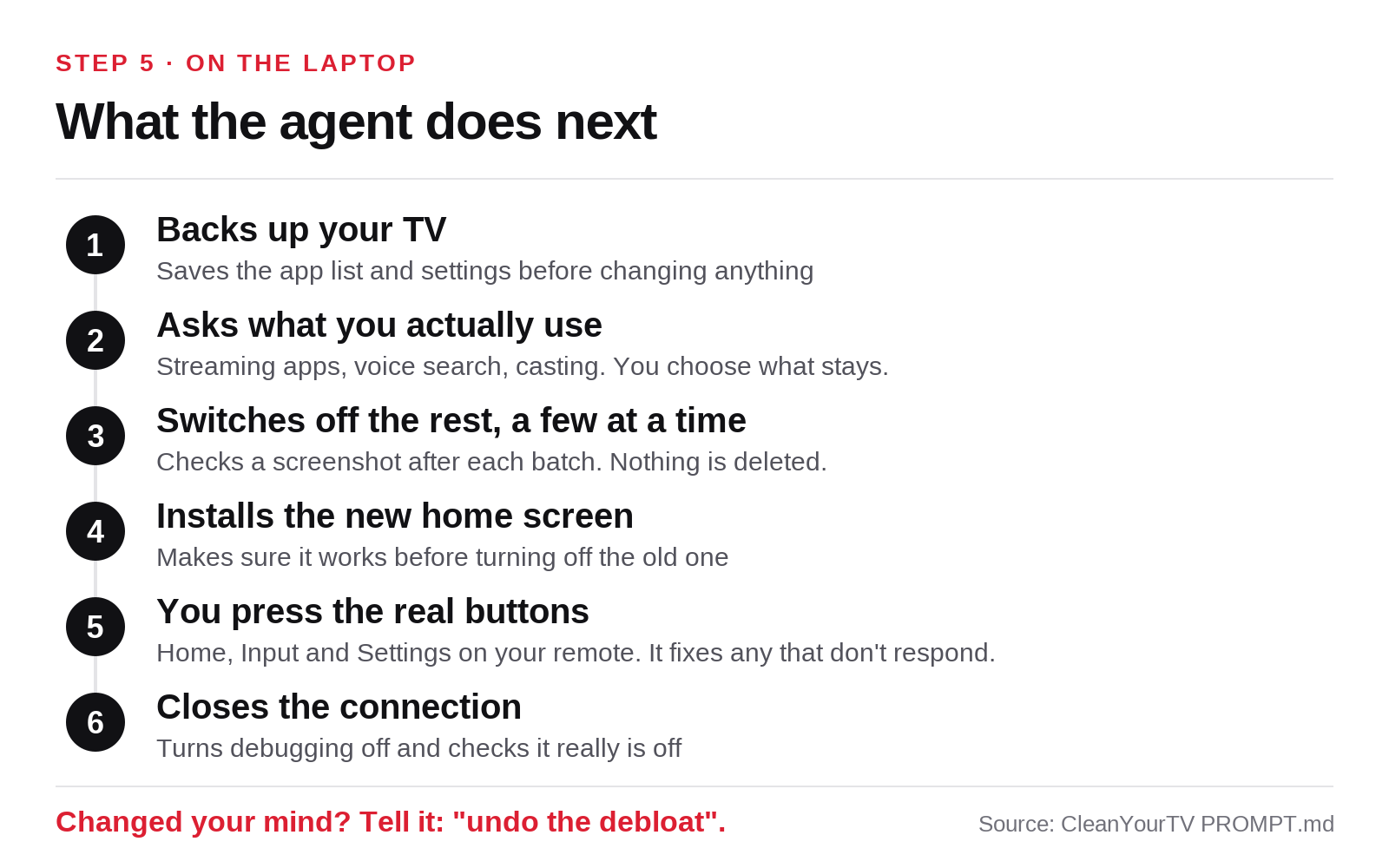
The agent asks which apps you use, such as Netflix, YouTube, voice search and casting. It keeps those and switches off the rest. It will also ask how many apps you want on the new home screen and which remote buttons to set up.
It can also set up ad-blocking DNS, which blocks ad and tracking sites across the TV. That won't stop YouTube ads.
When it's done, press Home, Input and Settings on your remote to check they work.
If something goes wrong
Tell the agent "undo the debloat" or "put the stock launcher back". It runs the tool's restore script, which switches everything back on. Nothing was deleted, so nothing is lost.
A few things to know:
- Finish in one sitting. Switching on USB debugging can cut power to the TV's USB ports, which matters if you use a USB network adapter.
- On Google TV, switching off one setup app can make the TV forget your Wi-Fi network. The agent checks for this first.
- After a TV software update, some apps may come back. Ask the agent to run the check again.
Does it really work?
Mostly, yes. Android Authority and others have covered it, and the project has nearly 60,000 stars on GitHub. In a video test, tech site Beebom said several old office TVs felt noticeably faster afterwards, and the new home screen used just 33 MB of memory.
But keep your expectations sensible:
- It isn't an Apple TV. It only copies the look.
- It doesn't work on everything. The project lists results from 488 TV models across 132 brands, but some sets refuse it, including some TCL models sold in China.
- It can go wrong. Android Authority reports people with TVs that got stuck partway through, and one that stopped working. Changes like this may also affect your warranty.
Samsung, LG and Roku TVs
These don't run Android, so CleanYourTV won't work. But you can still control them from your laptop with an AI agent. Each brand has a setting to switch on first.
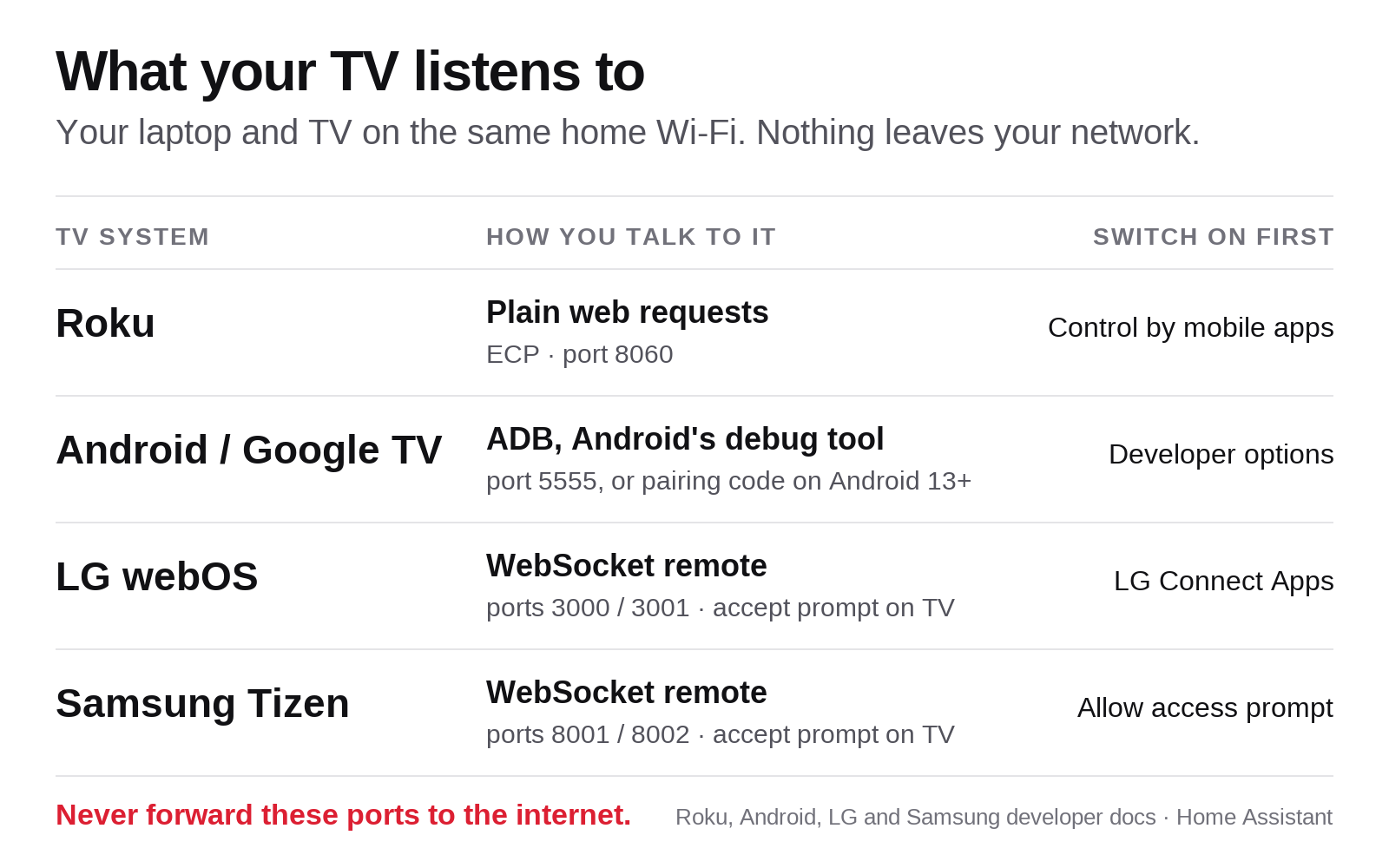
- Roku: Settings > System > Advanced system settings > turn on Control by mobile apps.
- LG: make sure LG Connect Apps is on, and accept the pop-up on the TV.
- Samsung: accept the Allow pop-up the first time your laptop connects.
Then give the agent a small first job:
My TV is a [brand and model] at [the TV's address] on my home network. Write a script that sends it one command: go to the home screen. Explain each line, and ask me before running anything. Don't scan any other addresses.
On a Roku, the whole script is one line:
curl -d '' http://192.168.1.50:8060/keypress/Home
Once that works, ask for bigger things in plain English:
- Bedtime switch-off: "Turn the TV off at 11pm every night."
- Movie mode: "One click to open Netflix and set the volume to 20."
- Phone remote: "A web page, only on my home network, with big buttons for power, volume and my three favourite apps."
Switch off viewing tracking (every TV)
Most smart TVs watch what's on screen and use it for ads. This is called ACR, short for automatic content recognition. Turning it off takes five minutes and needs no code. These menu paths come from Malwarebytes and RTINGS, and they vary a little by model year.
- Samsung: Settings > Support > Terms & Privacy > Privacy Choices > turn off Viewing Information Services.
- LG: All Settings > General > System > Additional Settings > turn off Live Plus.
- Roku: Settings > Privacy > Smart TV Experience > turn off Use info from TV inputs.
- Vizio: System > Reset & Admin > turn off Viewing Data.
- Sony and other Google TVs: Privacy > turn off Samba Interactive TV.
Stay safe
- Only touch TVs you own. Pointing these tools at someone else's device isn't hacking your TV.
- Keep it local. Never set up port forwarding on your router to reach the TV from outside.
- Turn debugging off when you're done. While it's on, anyone on your Wi-Fi could control the TV. CleanYourTV does this for you at the end.
- Approve every command yourself. Don't use the agents' skip-permission modes.
- Skip rooting. Breaking into the TV's software can leave it unusable, so we won't cover it here.
Curious how these agents work under the hood? Our guide to building your first AI agent walks through the loop they're built on.


