There is no single button that tells you whether a photo or video is AI-generated. What works is a quick routine: find where it came from, search for earlier copies, check for a built-in label, and only then look for visual glitches.
The quick checklist
- Pause. If a post makes you instantly shocked, angry or hyped, that is the moment to slow down.
- Find who posted it first. An established account, or a brand-new profile with a random name?
- Run a reverse image search with Google Lens or TinEye. For a video, grab a still frame first.
- Check for Content Credentials at contentcredentials.org/verify. A label there can tell you how the file was made, including AI use.
- Search the claim. If something huge happened, trusted news outlets or official accounts will usually be talking about it.
- Zoom in on the details, like hands, text and lighting. Treat what you find as a reason to check further, not as proof.
- Still not sure? Don't share it as fact. "Is this real? Can't tell" is always an option.
Why this matters now
You have probably seen it already: a photo that looks real, a clip of someone famous saying something unhinged, or a "breaking news" video that turns out to be completely made up.
Fake content is not new. Edited photos and misleading captions have been around forever. What has changed is how quickly anyone can make something that looks real, and how fast it can spread once it lands in a group chat.
Sharing a fake is usually not a big deal when it is a joke. It is a bigger deal when it is about a real person, a real event or something people might panic over. Nobody wants to be the one who started the rumour, fr.
The biggest tell is often how a post makes you feel. Content designed to go viral is built to skip your "wait, is this real?" step. This works whether you are in school, at university or scrolling on the train home from work.
How to check if a photo is AI-generated
- Save it or screenshot it. Crop tightly around the image, so the search tools are not distracted by the app around it.
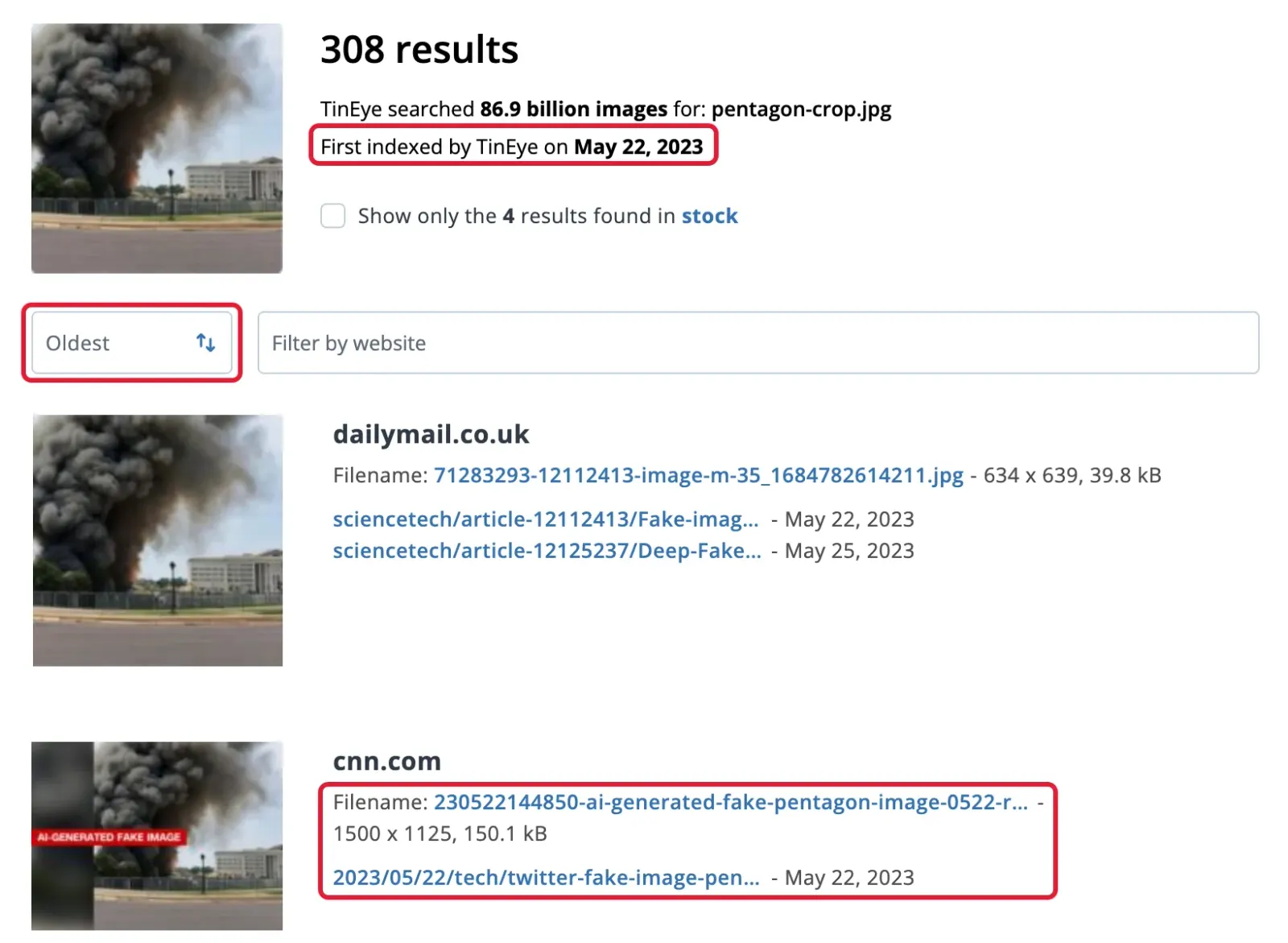
- Reverse image search it. On a computer, go to google.com, click the "Search by image" icon, then upload the file or paste the image link. In Chrome you can right-click an image and choose "Search with Google Lens". On a phone, tap the Lens icon in the Google app and pick the image or screenshot. (Google's help page) Then try TinEye, which takes an upload, a pasted image or an image link. Sort the results by "Oldest" to see the earliest copies TinEye has found. (TinEye's tutorial)
- Read what the search finds. Look for an older version, a different caption, a stock photo site, or a known AI art account. A real news photo usually traces back to a photographer or outlet. A brand-new AI image may have no matches at all, which is a reason to keep checking, not a clean bill of health.
- Check for Content Credentials. Upload the original file at contentcredentials.org/verify. If it carries Content Credentials, you can see how it was made and edited, including whether AI was used. If it has none, that proves nothing: the data can be lost when a file passes through a platform that does not support it, and a screenshot will not carry the original's credentials.
- Ask Gemini about Google's watermark. In the Gemini app, signed in, upload the image and ask "Is this AI-generated?" It looks for SynthID, Google's invisible watermark. Google says it can only recognise content made with Google's own AI tools, so a "no" does not rule out other AI generators.
- Look at the details. Hands, teeth, ears, background text and shadows. See the table below for how much to trust each one.
How to check if a video is AI-generated
- Grab still frames. Pause on clear moments, especially faces, signs and the background, and screenshot them. Or use the free InVID-WeVerify plugin, listed in the Chrome Web Store as "Fake news debunker by InVID & WeVerify". Its Keyframes tool splits videos from platforms such as YouTube, Facebook and Instagram into key frames.
- Reverse search the frames. Put each frame through Google Lens and TinEye, as you would a photo. For a YouTube video, the plugin's Thumbnails tool runs a reverse image search on the video's thumbnails through Google, Bing, TinEye or Yandex.
- Look for the original. Some fakes are real, older footage with a new caption. Others are AI clips with no history. An earlier, longer version from a named source is a good sign. No trace at all means keep checking.
- Check the file if you can get it. Upload the original video, not a screen recording, to the Gemini app, which can check short videos for Google's watermark. You can also try contentcredentials.org/verify, which lists the file types it accepts.
- Watch and listen closely. Mouths that do not quite match the words, strange blinking, face edges that flicker, objects or text that change between frames, and voices that sound flat or oddly paced.
- Check the source and the date. Who posted it first, and when? Is anyone credible reporting the same event?
Worked example: the fake Pentagon explosion photo
Here is the routine on a real fake. On the morning of 22 May 2023, an account called @WhaleChart posted "BREAKING: Explosion near Pentagon" with a photo of black smoke rising beside a large white building. Blue-tick accounts, including one pretending to be Bloomberg News and the real account of Russian state outlet RT, passed it on, and US stock markets briefly dipped. There was no explosion. The image was made with AI.
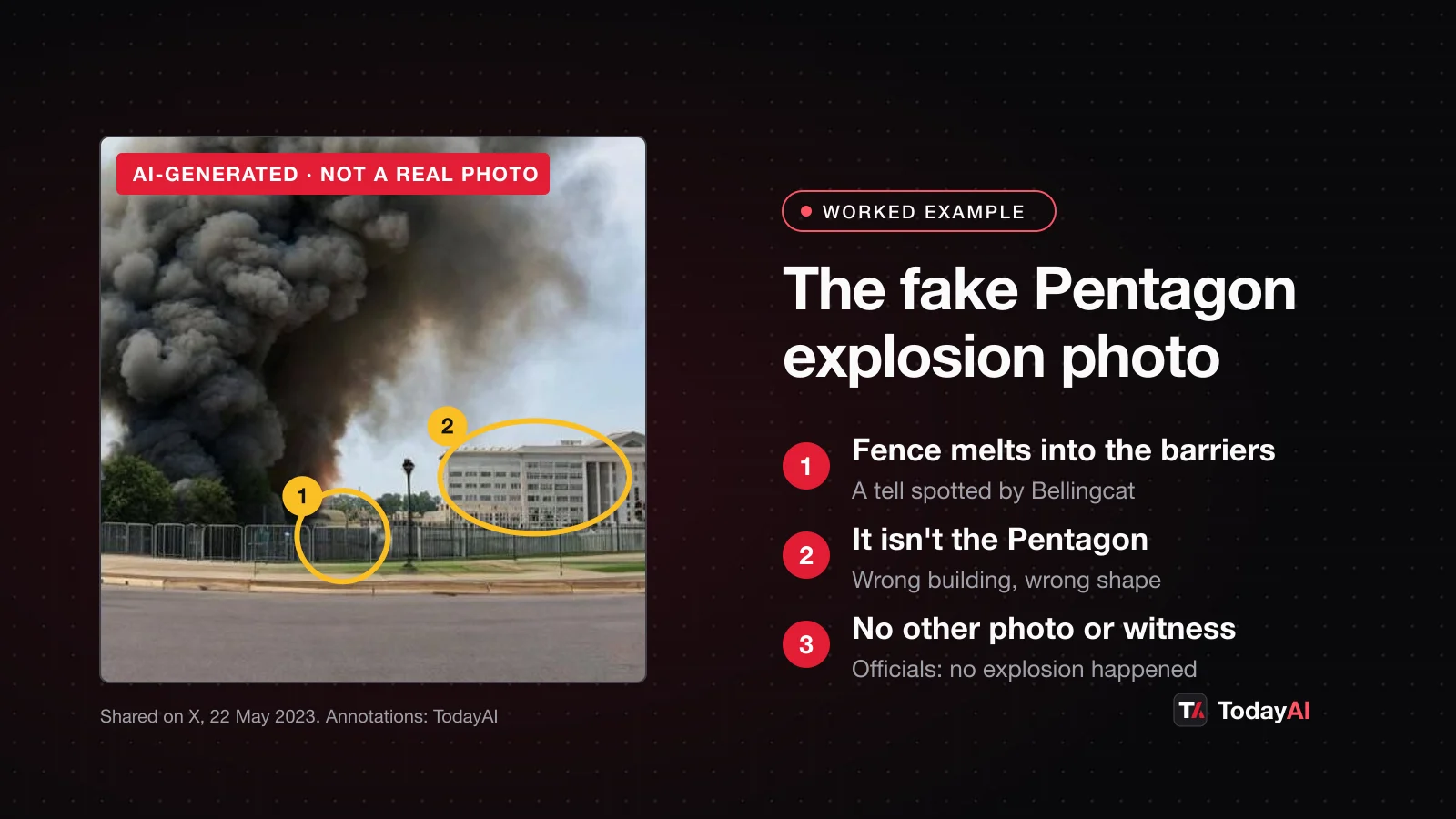
We ran the same checks this guide recommends, on 25 November 2026:
- Crop the image out of the post. We cut the photo out of a screenshot of the original post, so the search tools only see the picture, not the app around it.
- Reverse search it, sorted by oldest. TinEye found 308 copies. The earliest it has seen is from 22 May 2023, the day of the post, and the oldest results are news stories from that day calling it fake. Nothing older exists, so this isn't real footage from an earlier event. On the day itself, a search would have found nothing at all, which is exactly why the next steps matter.
- Check who posted it. The first account was not a news organisation, and one of the biggest sharers was pretending to be Bloomberg. A real explosion at the US military headquarters would have been reported by many outlets and dozens of witnesses at once.
- Search the claim. Later that morning, the Pentagon Force Protection Agency and Arlington County Fire Department said in a joint statement: "There is NO explosion or incident taking place at or near the Pentagon reservation." Nick Waters of the investigations group Bellingcat also pointed out there were "no other images, videos or people posting as first hand witnesses."
- Only now, look at the details. Waters noted "the way the fence melds into the crowd barriers" (circle 1). And Lead Stories found the building isn't the Pentagon at all (circle 2). The real Pentagon is a vast five-sided building, not a block with a columned front like this one.
- Don't lean on an "AI detector" score. Lead Stories ran two near-identical copies of this image through the Hive detector. One scored 25.7% likely to be AI, the other 89.5%. Same fake, opposite answers.
For a video, the routine is the same. Pull a clear frame with a screenshot or InVID-WeVerify's Keyframes tool, and run that frame through steps 2 to 6.
If you get to the end and still cannot tell, that is a fine result. Do not share it as fact.
Which signs of AI can you trust?
AI tools keep improving, so no single clue is guaranteed. Some checks are much stronger than others.
| Signal | What to look for | How reliable |
|---|---|---|
| Content Credentials | A record of how the file was made and edited, including AI use | Strong when present. Missing credentials prove nothing |
| Google's SynthID watermark | Gemini says all or part of it was made or edited with Google AI | Strong for Google AI. Says nothing about other tools |
| Reverse image search | Older copies, the original source, a different story attached | Very useful for reused or old content. A new AI image may have no matches |
| The source | Who posted first, how old the account is, whether trusted outlets report it | Very useful, and often the fastest check |
| Metadata (EXIF) | Camera model, date, editing software | Weak. Often removed when files are uploaded or screenshotted, and easy to edit |
| Hands, teeth, ears | Extra fingers, blended teeth, odd shapes | Weak, and getting weaker as tools improve |
| Background text | Blurry, misspelled or unreadable signs and labels | Weak. Newer tools make fewer of these mistakes |
| Lighting and shadows | Shadows that don't match, or one part "too clean" | Weak. Hard to judge on a phone screen |
| Lip sync, blinking, flicker | Mouths out of step, strange blinking, face edges that flicker | Weak. Video compression can cause similar glitches |
| Voice | Flat, oddly paced, missing natural breaths | Weak |
| "AI detector" websites | A percentage score | Mixed. A score is a guess, not proof |
The details that still slip most often:
- Hands, teeth and ears can look slightly off, blended or oddly shaped.
- Text in the background, like signs, labels or posters, may be blurry, misspelled or unreadable.
- Lighting and shadows might not match, or one part of the image looks "too clean" compared with the rest.
- In videos, watch for mouths that do not quite match the words, blinking that feels strange, or edges of a face that flicker.
- Voices can sound flat, oddly paced or missing the natural breaths people take.
None of these prove something is fake on their own. They are reasons to check further.
How to check the source, not just the post
The details are only half the story. The other half is where it came from. Ask yourself three quick questions: who posted this first, is anyone else reporting the same thing, and does it seem too perfect, too dramatic or too convenient?
- Find the original account. Is it a real, established account, or a new profile with a random name?
- Search the claim. If something huge really happened, trusted news outlets or official accounts will usually be talking about it.
- Try a reverse image search. Tools like Google Lens let you search with an image to see where else it has appeared and whether it has been posted before with a different story.
- Read the comments carefully. Sometimes other people have already spotted the fake. Sometimes the comments are just as confused, so do not rely on them alone.
What to do if you're still not sure
If you are not sure, you do not have to share it. That is a completely valid option.
If you do share something to ask whether it is real, say so clearly: "Is this real? Can't tell." That is very different from reposting it as fact.
And if a fake is about someone you know, like a classmate or friend, do not pass it on. Tell a trusted adult, teacher or the platform using its report tools. Fake images of real people can seriously hurt them, even if whoever made them thought it was a joke.
The real skill is not paranoia
The goal is not to become someone who believes nothing. It is to be someone who checks before believing, especially when it matters. That habit is lowkey one of the most useful things you can build right now, at any age. For the broader picture on voice cloning and synthetic media fraud, read our report on deepfakes and digital trust, or test your eye in AI or Real.
So next time something looks wild, give it five seconds. Pause, search the image, check the source. Then decide.
Your turn: choose your checking style
Are you a certified fact-checker, or does anything funny go straight into the chat? Choose your answer in the poll below, then send this to the friend who reposts everything instantly.